You automate the process using a bulk optimization tool instead of converting files one by one.
After fixing other people’s sites for a while, you realize that unoptimized images are one of the most common performance killers. Sure, manual conversion works for small blogs, but it’s practically impossible for a commercial real estate site that has over 5,000 images.
I faced this exact problem in 2024.
I was hired to fix a Zoho CRM integration causing 500 errors on Metro Manhattan, a New York real estate platform built on WordPress with over 900 pages. Alongside these errors, I found some severe performance issues.
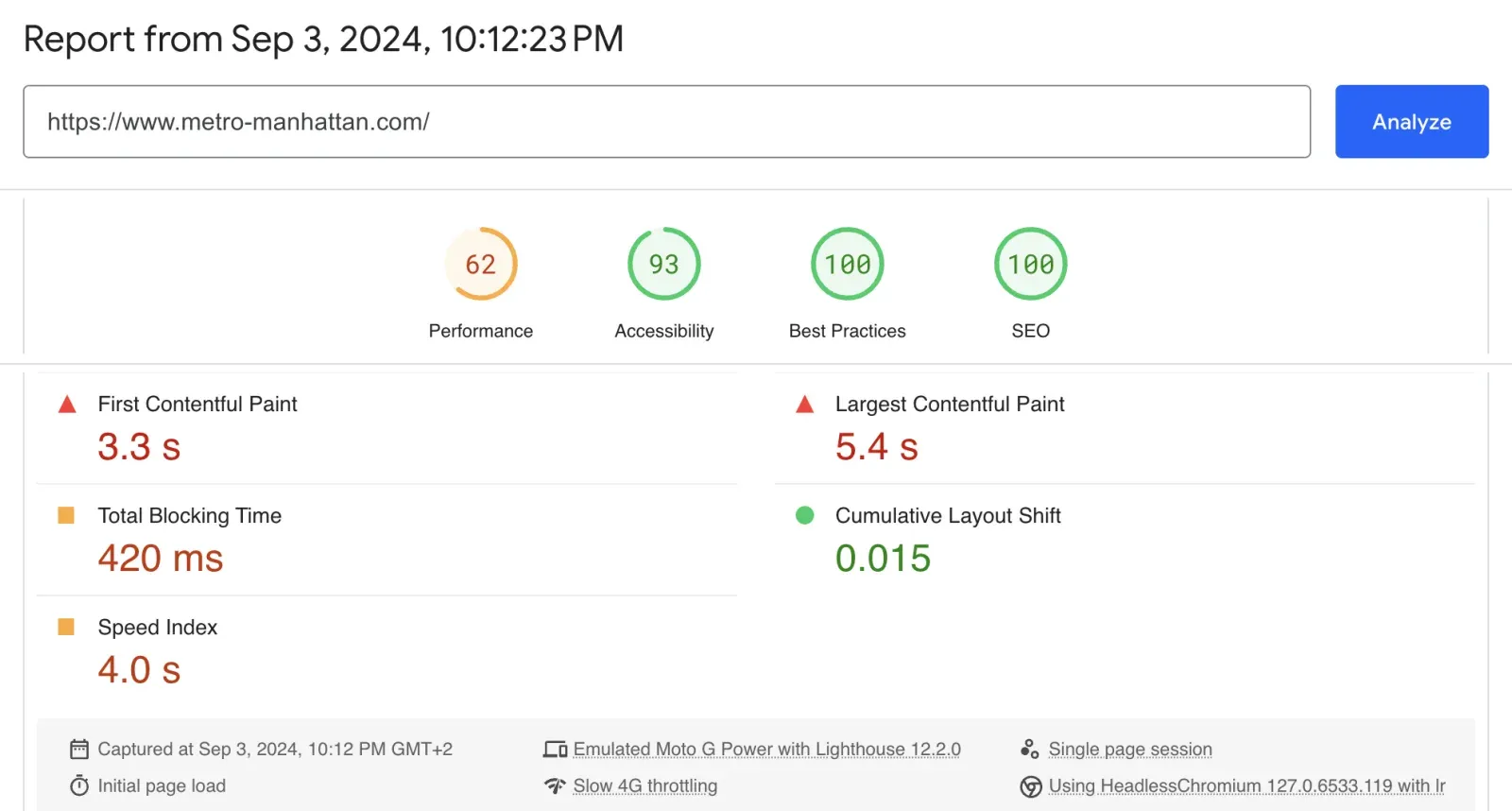
When I ran PageSpeed Insights on September 3rd, 2024, the mobile PageSpeed score was stuck at 62, with a 5.4s LCP and 420ms TBT. Core Web Vitals were failing across the board.
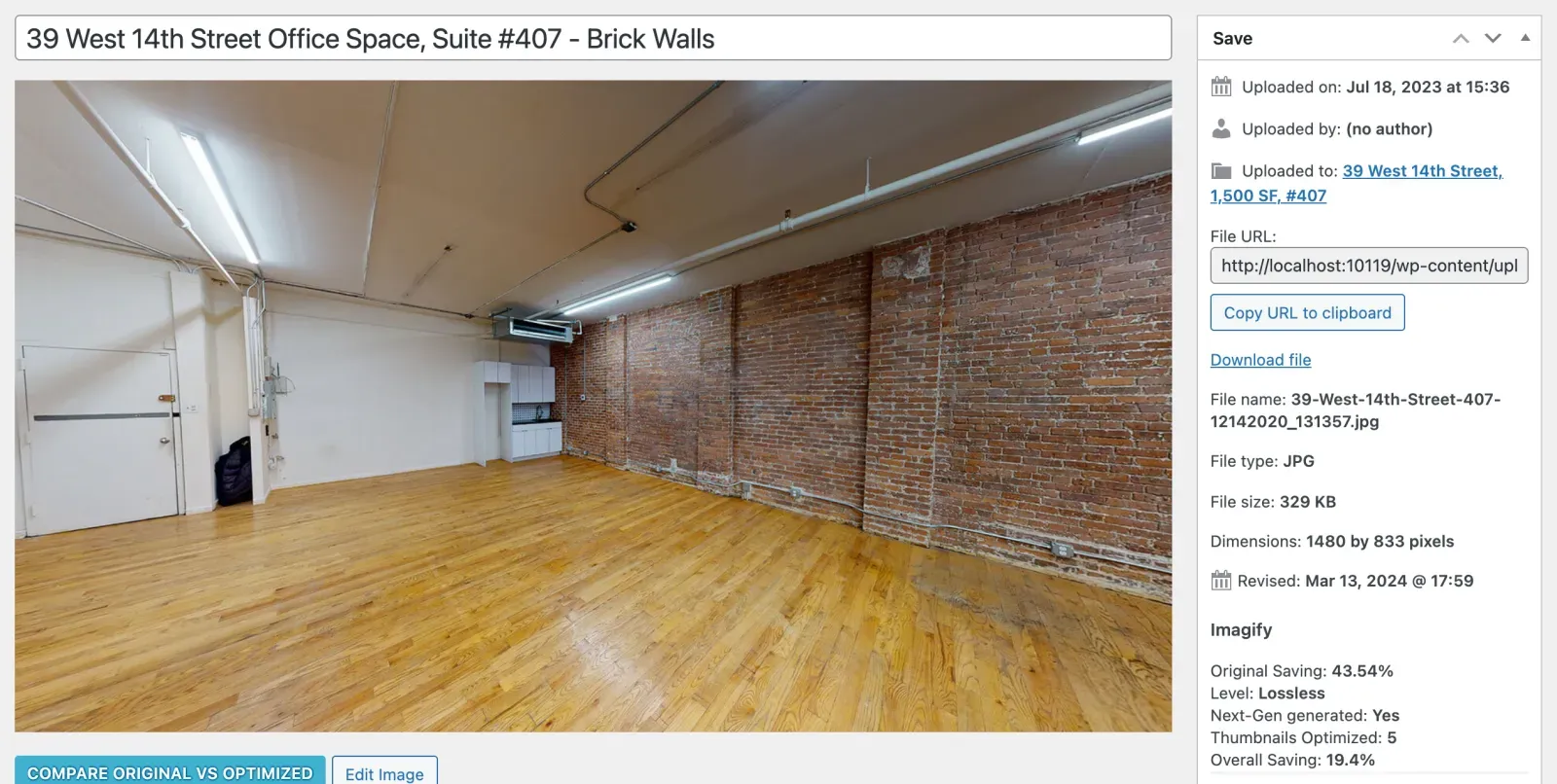
Real estate sites tend to suffer from image bloat because high-resolution property photos are constantly uploaded straight from cameras or phones. And with a library exceeding 5,000 unoptimized images, it was immediately clear that image weight was dragging the entire site down.
What Is Imagify and How Does It Work?
Imagify is a WordPress plugin that compresses existing images in your Media Library and automatically optimizes new uploads as you add them to your site.
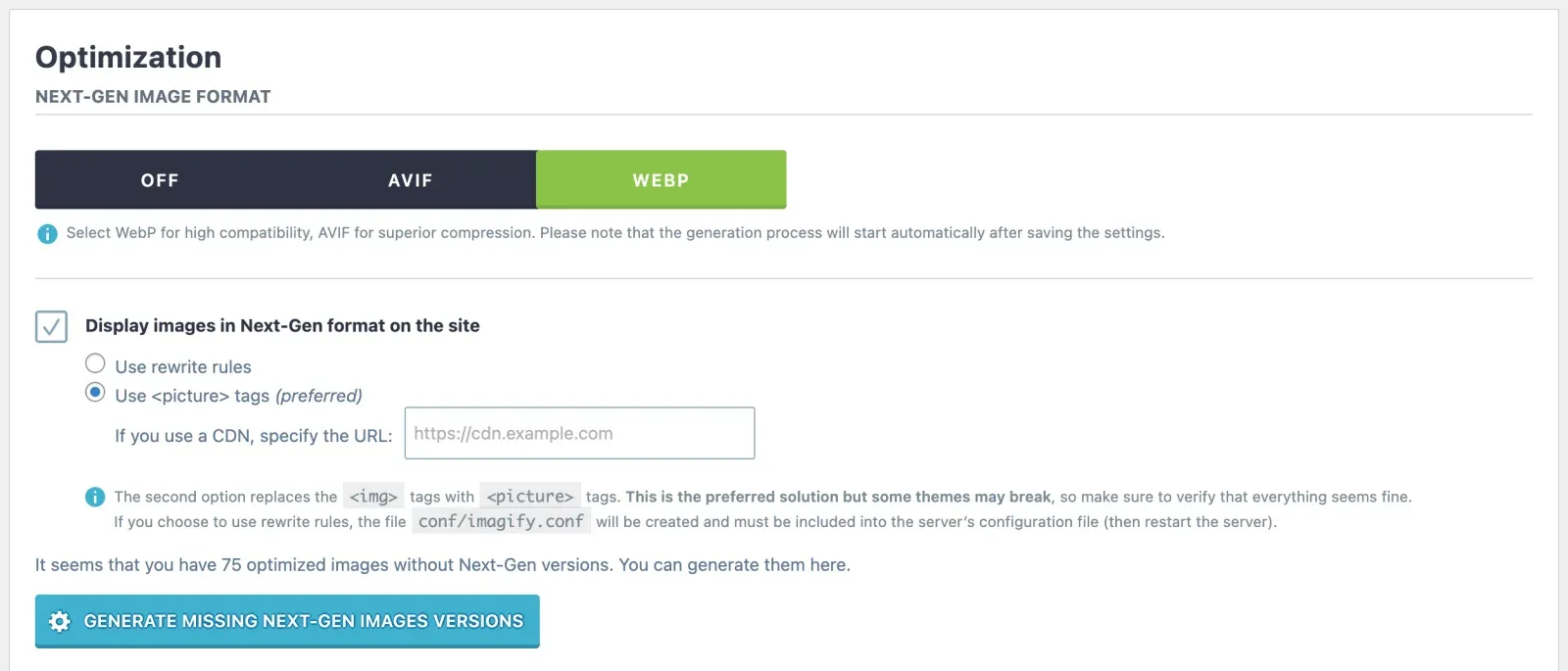
The plugin also converts standard JPEGs and PNGs into newer, significantly smaller formats like WebP and AVIF. An important thing to mention here is that in Imagify, these two formats are mutually exclusive. This means that turning on AVIF conversions disables WebP, so you have to pick one format moving forward.
This reduction matters a lot on image-dense sites, where saving just a little weight per image can cut bandwidth and data usage across the entire platform by a lot.
How Much Does Imagify Cost?
Imagify offers three main tiers depending on the size of your site:
- The free Starter plan, which is free for up to 20MB a month (~200 images).
- The Growth plan, which costs $5.99/month (or $4.99/month billed annually) for 500MB (~5,000 images).
- The Infinite plan, which costs $11.99/month ($9.99/month billed annually) for unlimited processing.
NOTE: I checked these prices in October 2026, but they fluctuate, so verify them on imagify.io before budgeting.
For Metro Manhattan, we understood that we immediately needed the Infinite plan to blast through the entire backlog in a day or two. I was able to go through the entire library and compress images in bulk, while also taking care of all new images that were supposed to be uploaded later on.
Disclaimer: I am not sponsored by Imagify, and I don’t use affiliate links. I’ve just had great experiences with it across several projects.
So, How Do You Process a Library of 5,000 Images?
Simple. You use Imagify’s bulk optimization feature to process the entire backlog, and then configure the plugin to automatically handle new uploads.
As mentioned, manual conversion wasn’t realistic for over 5,000 images, so I relied on bulk conversion, which took a day and a half to finish.
That conversion is the one thing in this article I can measure exactly, so here it is. Counting every file Imagify converted that was uploaded before October 2024, the originals come to 1,186 MB and their WebP versions to 616 MB. That is 48 percent less image weight across 18,624 files, once you include the sizes WordPress generates for every upload.
Once this was complete, the site started serving much smaller WebP versions instead of the original JPEGs and PNGs. Imagify also features a setting that swaps the plain <img> tag for a <picture> element.
This is worth turning on because it serves the WebP file first while keeping the original JPEG as a fallback for older browsers that cannot decode the newer format.
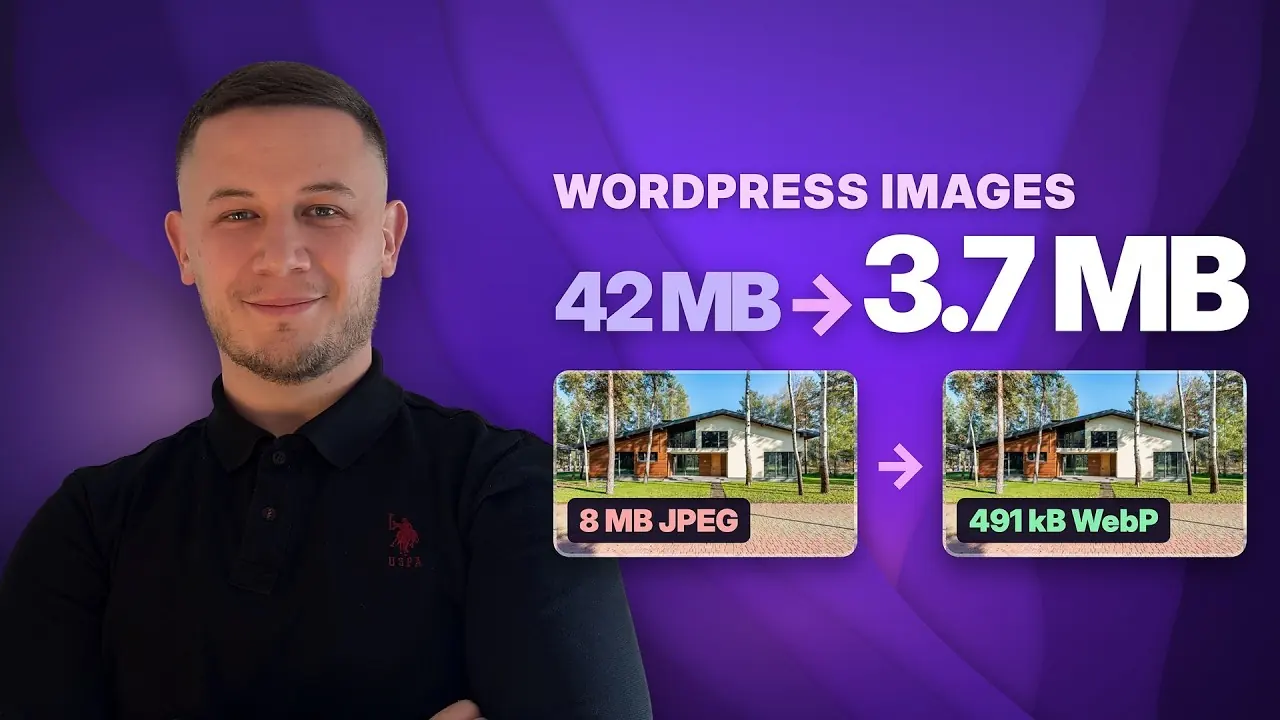
I could not film any of this on a client’s live site, so I built a WordPress property site of my own, loaded it with twenty unoptimised photos, and ran the same process end to end on camera.
Should You Delete Unused Images Before or After Optimizing?
If you are paying per image or megabyte, you should definitely clean up your unused images first so you don’t pay to process files no one will ever see.
While going through the Metro Manhattan library, I realized many images weren’t used anywhere on the site. Not on a listing, not in a post, not in a gallery.
Actually, this happens quite frequently on real estate sites. A listing goes up with twenty photos, the space gets leased, the listing comes down, and the photos stay in the library forever and ever.
Do that for ten years, and most of your library is just history taking up space.
The problem is that deleting is permanent, and WordPress makes proving an image is genuinely “unused” surprisingly difficult. An image can be referenced from a page builder’s tables, a custom field, a stylesheet, a shortcode, or a forgotten post from 2014, yet the Media Library will still happily show the file as unattached.
I wanted to handle this safely, and so I built a small admin tool that listed cleanup candidates. I then checked a sample by hand before deleting anything, always taking a backup first.
Find, verify a sample, back up, then delete, in that exact order, every time.
On this site, the cleanup didn’t change the bill because the Infinite plan made it a moot point. But if you have a smaller library with a metered plan, cleaning up should always be your first step.
How Much Did Imagify Improve the Site’s Performance?
Optimizing the images eliminated a massive chunk of unnecessary page weight, laying the necessary groundwork to fix the site’s remaining bottlenecks.
Images were only one piece of the puzzle, so I continued tackling other problematic areas (the full case study covers the rest). Three days after that first round of performance work, the results were clear:
- The mobile PageSpeed score went from 62 to 96.
- LCP dropped from 5.4s to 2.5s.
- Core Web Vitals were passing across the site, including all 921 pages indexed in Search Console, on both mobile and desktop.
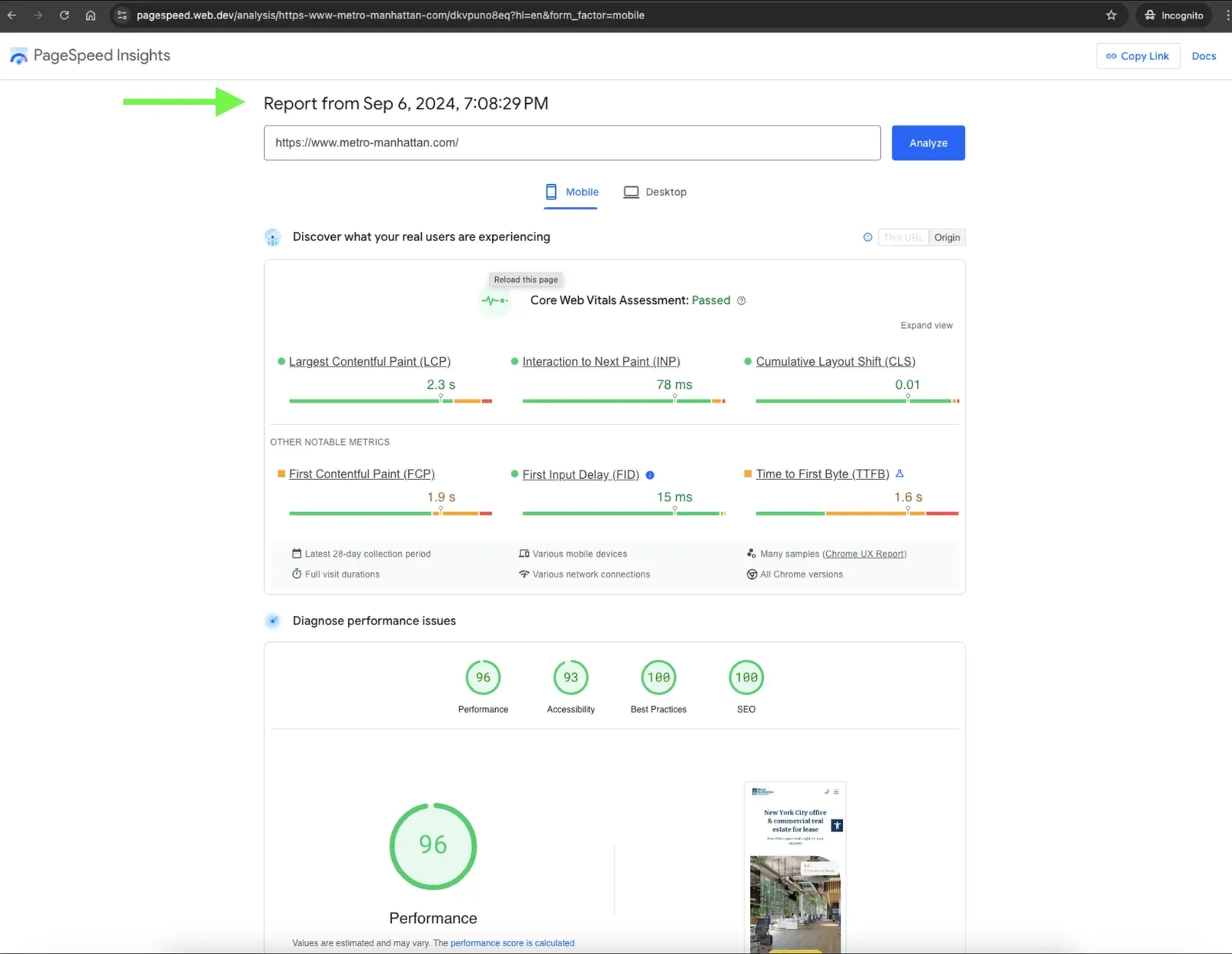
While Imagify wasn’t responsible for all of these improvements in and of itself, it took care of one of the biggest problems on the site and made sure images were no longer dragging everything else down.
Caching, and the way the site’s CSS and JavaScript loaded, came next. That’s a story of its own.
Do You Need a Plugin for Image Optimization?
You don’t need a plugin per se, but using a pre-built tool saves you from the headache of testing and maintaining a custom workflow on a larger site.
You can always use command-line tools like ImageMagick or cwebp to compress files directly on your server, or even write a custom Python or shell script with the help of ChatGPT or Claude Code.
The problem is that you still have to test and maintain that solution, integrate it with WordPress, and ensure new uploads are handled correctly. For a larger WordPress site, I think it’s much more efficient to use something that already works out of the box than to build something of your own.
How Does Imagify Compare to ShortPixel, EWWW, and Others?
Imagify is excellent for automated bulk processing, but tools like ShortPixel, EWWW, Optimole, or Cloudflare Polish might be a better fit depending on your specific needs and server setup.
Here is how Imagify stacks up against the alternatives:
- ShortPixel is the closest comparison. The difference is that it sells one-time credit packs starting at around $19.99 (which never expire), alongside a $9.99 monthly unlimited plan. If you have one big library to get through and almost nothing after that, a credit pack fits that use case better than any subscription (including Imagify).
- EWWW Image Optimizer compresses on your server by default, with no external API and no monthly quota for the free tier. If you have server access and don’t mind tuning it, that part is genuinely free. The paid tiers are monthly only, starting at $8, and there’s no one-time option.
- Optimole works the other way around. It serves resized images from its own CDN rather than optimizing files in your library.
- Cloudflare Polish is something people forget about. If your site is already behind Cloudflare on a Pro plan or above, Polish converts images to WebP at the edge, and you don’t need an image plugin on your site at all.
So, when is Imagify not the answer?
- If you are already paying for Cloudflare Pro, use Polish.
- If you have a small site and fifty images to convert once, a credit pack or Squoosh by hand will do the job.
- If you have server access and some patience, EWWW costs nothing.
What keeps me on Imagify is the combination I actually needed here. One bulk run through an existing library, then automatic conversion on upload, with almost zero configuration.
Conclusion: Is Imagify Worth Using?
Yes, Imagify is highly recommended if you manage a large Media Library and want a completely hands-off, automated solution.
It saves you from having to manually optimize images, and the bulk optimization feature is a lifesaver when dealing with an existing site that holds hundreds or thousands of files.
For Metro Manhattan, I initially used the Infinite plan because I needed to process more than 5,000 existing images. Once that initial backlog was cleared, there wasn’t much need to keep paying for unlimited processing since the site only added around 20 new images weekly.
At that point, I could easily downgrade to a smaller plan.
But the biggest advantage of Imagify is that it allows you to stop thinking about image weight entirely. You install the plugin, process the old images, and let it handle everything new.
I’ve used it for several client sites since Metro Manhattan, and it consistently proves itself to be one of the easiest parts of the performance optimization process.
Not sure what is slowing your site down?
Send a URL and give us one day. You get a short, written read of what is slow, what is stopping you showing up in search and AI results, and what we would do first. No call required.
Get a free snapshot