You enable caching, flip on Remove Unused CSS and Delay JavaScript execution, and then spend most of your time dialing in the exclusions.
That is the condensed version of what I learned while running WP Rocket on Metro Manhattan, a commercial real estate platform in New York with more than 900 pages.
WP Rocket packs dozens of switches, and most tutorials walk you through every one. On a large site only a handful dictate the result, and a few others should remain untouched.
Below are the exact settings running on that platform, pulled straight from its configuration, with the logic behind each choice.
I installed WP Rocket during the first week of September 2024, two months into the project. The images were already converted by then, with Imagify, and I had extracted the critical CSS by hand, one stylesheet per template. That left the bottlenecks those two steps could not touch.
Until then, the site had no page cache at all. Every one of its 900-plus pages was assembled by PHP and MySQL for each visitor. Worse, the browser was forced to load Google Tag Manager, gtag, and a Zoho chat widget before the page even became usable.
Over that initial round of optimization, the mobile PageSpeed score jumped from 62 to 96. The home page went into that round carrying 420 milliseconds of Total Blocking Time.
However, WP Rocket was just one of four or five improvements made during that phase, so I will not pretend I can isolate its exact contribution. That is why the measurements later in this article come from an isolated test site.
What Is WP Rocket and What Does It Actually Do?
WP Rocket is a premium WordPress plugin that caches your pages and alters how your CSS, JavaScript, and images load, so the browser displays meaningful content faster.
Page caching is the familiar idea. Instead of making WordPress query the database and run PHP on every visit, WP Rocket saves a pre-built HTML copy and serves that.
Modern performance gains, however, come from what the plugin handles inside that page: which CSS loads, when JavaScript executes, and whether images wait until the user scrolls near them.
How Much Does WP Rocket Cost?
The vendor offers three annual tiers, and the only difference between them is the number of supported sites.
- Single: EUR 59.95 a year for one site.
- Plus: EUR 119.95 a year for three sites.
- Multi: EUR 299.95 a year for 50 sites.
The Multi plan also lists 100 and 500 site tiers without a price, and says to contact sales above 500.
These figures come directly from WP Rocket’s pricing page, which lists euros and has no currency selector, so expect to be charged in euros wherever you are, plus local taxes. I mention it because several review sites quote 59, 119, and 299 US dollars, a currency the vendor’s page never actually displays.
Each tier includes a 14-day trial, so you can cancel or claim a full refund within that window.
There is no free version, which becomes an important detail when we compare it to the free alternatives further down.
Which WP Rocket Settings Did I Turn On?
Here is the exact list, along with a plain explanation of what each one handles.
- Page cache, with a separate cache for mobile. Phones and desktops get their own saved copies, which matters when a theme serves different markup per device.
- Preload links. The moment a visitor hovers over a link, WP Rocket starts fetching that page before the click.
- Minify CSS and JavaScript. Strips spaces and developer comments. A marginal gain at low risk.
- Remove Unused CSS. We will cover this in detail shortly.
- Delay JavaScript execution. We will also cover this below, as it requires the most labor.
- Lazy load images, iframes, and CSS background images. Anything below the first screen waits until the visitor scrolls.
- Add missing image dimensions. Images without width and height make the page jump as it loads. This fills them in.
- Disable emoji. Removes a script WordPress loads on every page for emoji most sites never use.
- Reduce the Heartbeat. WordPress pings the server every 15 to 60 seconds while the admin or editor is open. Throttling that takes load off the server.
If forced to choose the most impactful setting, I would point to Delay JavaScript execution. I say that cautiously, since I never tested these features in isolation, but I know exactly where I spent my time. Eight of those settings were a single switch each. That one demanded 14 lines of manual exclusions and nearly a week of testing to find them.
On Metro Manhattan, server response was never the core issue. The site felt fast to a human visitor, even from Europe, and it later moved to a dedicated box in New York anyway. The real performance tax was happening inside the browser, specifically the 420 milliseconds of Total Blocking Time on the home page caused by third-party JavaScript. Delay JavaScript execution stands out because it is the only feature on that list that strips that delay out of the initial page load entirely.
Why Leave “Combine CSS” and “Combine JavaScript” Off?
Because combining files rarely improves performance on modern servers and frequently causes breakage.
Combining made sense when browsers could only download a small batch of assets at a time. Under HTTP/2 they fetch many small files in parallel, so merging them into one large file gains little. Worse, it introduces risk: one syntax error inside a combined file can stop every script after it.
On Metro Manhattan, both options stayed off, alongside “Defer all JavaScript,” because Delay JavaScript execution already does the heavier job.
What Does Remove Unused CSS Do?
It generates a stripped-down stylesheet for each page, keeping only the CSS rules that page actually uses.
Most WordPress themes and plugins load the stylesheet for every component on every page, sliders, forms and footer widgets, whether the page has them or not.
Remove Unused CSS resolves this by sending each page URL to WP Rocket’s external servers, which analyze the page, identify the active selectors, and generate a streamlined file. WP Rocket then injects that stylesheet into the page HTML.
Keep two things in mind before turning it on. First, it is not instantaneous. Used CSS is generated in the background, so the first visits after activation are not optimized yet. Second, your site must be publicly reachable and running WordPress cron, so WP Rocket’s servers can visit and parse it.
If it causes layout issues, WP Rocket offers “Load CSS asynchronously” as a fallback, which relies on the older critical CSS approach.
On Metro Manhattan, it ran without a single issue, which surprised me more than it should have. WP Rocket provides a safelist to protect selectors that get stripped by accident, yet on that site it is still empty. Nothing ever needed saving, and the fallback was never activated.
In my view, that is because the theme was custom-built with Vite and served one compact stylesheet per template, rather than stacking plugin stylesheets onto every page. There was simply less code for WP Rocket to get wrong. If your site is built with a heavy page builder and fifteen plugins, expect to use that safelist.
How Do You Stop Delay JavaScript From Breaking Your Site?
You explicitly exclude the scripts that must run immediately on load, and you test every interactive element across the site after every change.
Delay JavaScript execution holds back every script until the user interacts with the page: moving the mouse, tapping, scrolling, or pressing a key. For a speed test that never interacts, those scripts effectively disappear from the initial load, which is why synthetic scores jump. For a real visitor, anything that relies on JavaScript before that first interaction can break: sliders, mobile menus, forms, chat tools.
On Metro Manhattan, the exclusion list contains 14 lines. Three rules handle the bulk of the work, mirroring the default exclusions added by WP Rocket’s own Safe Mode:
- every script served from the local
/wp-content/and/wp-includes/folders, - jQuery,
- inline scripts attached to files by themes and plugins.
With those three in place, Delay JavaScript execution only holds back third-party scripts, such as analytics trackers, chat tools, and external embeds. The remaining eleven lines name specific files, like the slider, Contact Form 7, and the theme’s main bundle, which the broader rule already covers.
WP Rocket’s official documentation frames Safe Mode as a temporary troubleshooting step while you identify the individual files to exclude. On Metro Manhattan, the broad exclusions stayed in place deliberately, and not out of laziness.
On that platform, first-party JavaScript handles lead generation. An inline script in the footer passes a visitor’s name and email into the Zoho chat widget as soon as the DOM is ready, so the broker talks to an identified prospect, not an anonymous session. A plugin I wrote saves half-filled contact forms over AJAX, so somebody who types two fields and leaves still lands in the CRM as a lead.
A single high-intent inquiry for a Manhattan office lease is worth far more than every Lighthouse score point combined, so delaying first-party scripts was never an option. Google Tag Manager and the chat widget itself could safely wait, and those are what the setting still holds back.
That reveals the real principle behind this feature. Narrow exclusions represent better engineering, but broad exclusions are better when you know exactly which scripts generate revenue.
Why Should the Hero Image Never Be Lazy Loaded?
Because the hero image is usually the largest visual element on the first screen, and lazy loading forces it to wait.
Google’s Largest Contentful Paint measures how long that element takes to render, and lazy loading tells the browser to hold an image back until it is needed, which is exactly wrong for an above-the-fold asset.
On Metro Manhattan, the home page hero, a large office interior photo, is excluded from lazy loading across all nine of its versions: the original upload, every size WordPress generated, and every format the site serves. Everything below the fold still lazy loads normally.
What Did WP Rocket Change on a Test Site?
I cannot give you a clean before-and-after for Metro Manhattan itself. WP Rocket went in there alongside image optimization, CSS and JavaScript fixes and a server move, and the full case study covers that work combined. So here is a test site where WP Rocket is the only variable that changed.
The test environment is a WordPress install whose image library I had already converted with Imagify for the previous article. That is deliberate. The image weight is already resolved, so any needle that moves now is WP Rocket alone, without borrowing credit from other tools.
Measured before installing anything: mobile Lighthouse 77, the median of three runs. Largest Contentful Paint 6.4 seconds. Total Blocking Time 0 milliseconds. Page weight 2.24 MB.
That last pair is worth dwelling on, because it undercuts half of the advice in this article. The setting I just told you matters most has no job to do on this test site. Total Blocking Time is already zero. There is no third-party JavaScript to delay, meaning Delay JavaScript execution will not move this score by a point. Every gain available here is trapped inside that 6.4-second LCP.
Inside that delay: 400 to 640 milliseconds wasted on server response from a site with no page cache, and more than two seconds lost because the browser cannot find the hero image fast enough.
Therefore, what WP Rocket should fix here is page caching, pulling the hero image out of lazy loading, and far-future cache headers on static assets, which currently fail. What it will not fix is the hero image being served to a phone at several times its display size. That is a srcset problem embedded in the markup. Imagify made that file smaller, but it did not make it the right size, and neither will this.
So I installed it, applied every setting above, let Remove Unused CSS finish, and measured again with the identical command.
Mobile 77 to 100, the median of three runs. Largest Contentful Paint fell from 6.44 seconds to 1.14. Total Blocking Time stayed at 0 milliseconds, exactly as the before reading predicted.
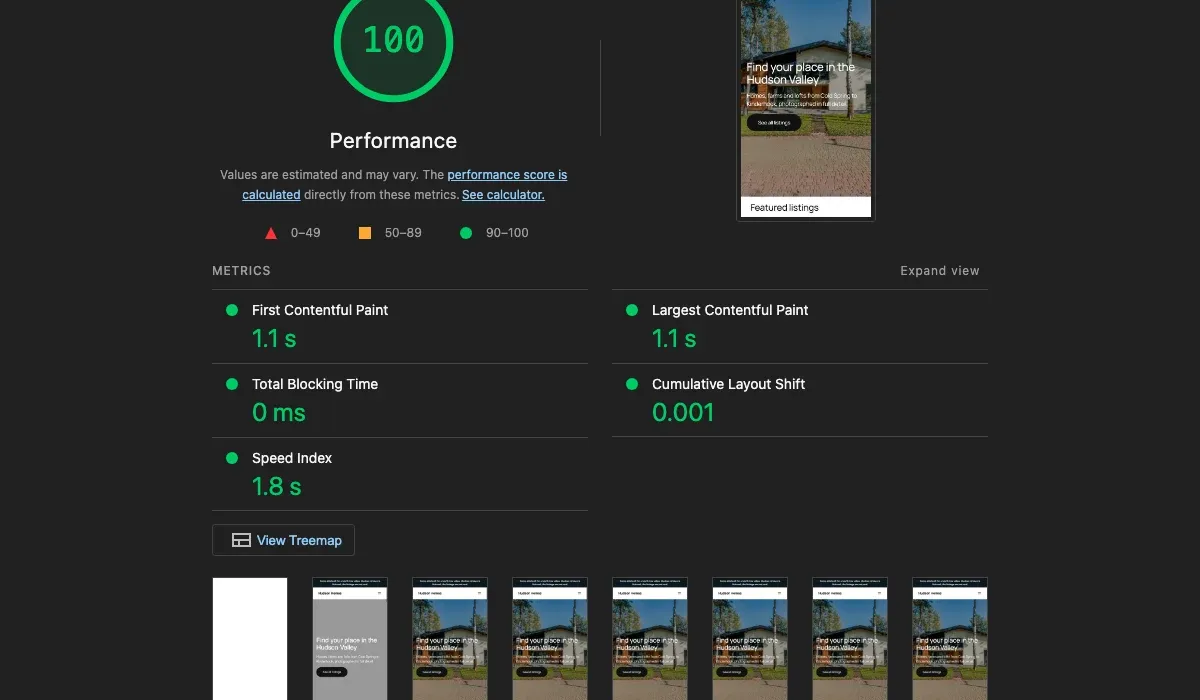
The wins are the three the before reading pointed at. Cache headers now pass, where 18 static assets failed. Server response dropped from 331 milliseconds of flagged savings to roughly 107. And the stylesheets left the network entirely, inlined as used CSS.
Two caveats, because that number is prettier than the truth.
Page weight fell from 2.24 MB to 0.98, and that is deferral, not compression. The before run loaded 12 images, the after loads 2. The hero is byte-identical in both at 480 KB. The other ten still arrive when a visitor scrolls.
And the 100 depends on which element Lighthouse decides is the largest contentful paint. Six of seven runs picked the heading and reported 1.1 seconds. One picked the hero photo and reported 4.07 seconds, scoring 87. That still beats 6.44, but it is a reminder that a score is a measurement of a measurement.
WP Rocket or a Free Plugin?
If you are hosted on a LiteSpeed server, try the free LiteSpeed Cache first. Everywhere else, WP Rocket is the one I reach for.
- LiteSpeed Cache is capable and free, but its page caching only works on LiteSpeed web servers. On Apache or Nginx you lose the plugin’s main feature.
- W3 Total Cache is free and works everywhere, but comes with far more settings and far more ways to get them wrong.
- WP Rocket costs money and intentionally features fewer knobs to turn. What you are paying for is sensible defaults and reliable support.
My own justification for buying it is narrower than raw speed. I use it on client sites because every option is individually reversible. If something breaks six months after I hand the project over, the client, or whoever follows me, turns one switch off, clears the cache, and the site is back. That is worth sixty euros a year on its own, and it is not true of a free plugin with forty interacting settings.
Two caveats from this year. On managed hosts like Flywheel, WP Rocket detects the host and disables its own page cache, so you are paying for the file optimization layer alone. Still worth it, but know what you are buying. And if your real problem is a page builder loading five add-on packs site-wide, reduce that payload before buying any performance tool. No caching plugin fixes a bloated page as well as deleting the bloat.
Conclusion: Is WP Rocket Worth It?
For a large WordPress site running on ordinary hosting, yes, provided you budget time for the exclusions.
Caching, minifying and lazy loading are close to set-and-forget. Remove Unused CSS and Delay JavaScript execution offer the biggest gains and are where sites most often break. Turn them on one at a time, click through every form, menu and slider after each change, and keep a list of what you excluded and why.
Finally, always measure first. On the test site above, the one setting this article spends the most words on turned out to have nothing to do. I never would have realized that without three benchmark runs and a median.
Not sure what is slowing your site down?
Send a URL and give us one day. You get a short, written read of what is slow, what is stopping you showing up in search and AI results, and what we would do first. No call required.
Get a free snapshot